
What is an Aggregate Device?
An Aggregate Device allows macOS to treat multiple audio inputs as one combined device.
In this case:
- Your audio interface handles your main sound (instrument / vocal mic)
- Your Mac’s built-in microphone is added purely for talkback or communication
- Apps see this as one input device with multiple channels
In this guide, we are also going to look at Aggregate Devices with an internal audio router, BlackHole. This is especially useful for players who use their computer to generate their instrument sounds (for example, software-based guitar amplifiers, or software keyboards, samplers and synthesisers) or makers wishing to send their DAW output into Bonza.
Before You Start
- If using computer devices: download and install (& please donate to them if you can) Existential Audio’s Blackhole Router. You will need to use a few inputs of the 16-channel driver.
- Plug in and power on your audio interface
- Make sure no other audio apps are currently using the interface (we recommend completely quitting/terminating all other programs for best practice)
- Use wired headphones to avoid feedback when using the built-in mic
Step 1: Open Audio MIDI Setup
- Open Finder
- Go to Applications → Utilities
- Launch Audio MIDI Setup
Step 2: Create a New Aggregate Device
- Click the “+” button in the bottom-left corner
- Select Create Aggregate Device
- A new device will appear in the list (you can rename it, e.g.
“Interface + Talkback Mic”)
Step 3: Select the Devices to Combine
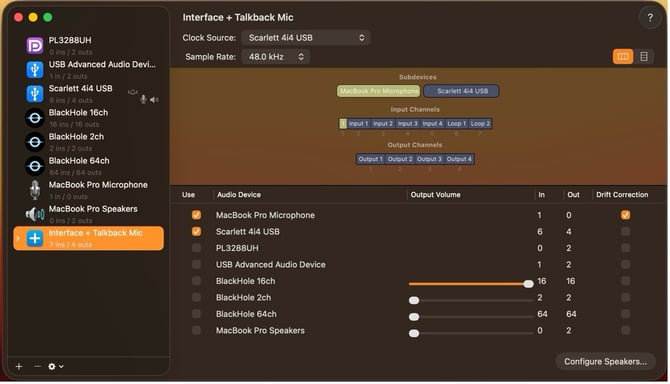
On the central panel list, please select in this order:
- Built-in Microphone (tick)
- Audio interface (tick) for physical inputs, or BlackHole 16ch for virtual inputs.
Don't forget to set the outputs of your virtual sound device to BackHole 16ch also!
You’ve now combined both input sources into one device.
It should look like this, with the Mac mic green in channel 1:
Mac mic Mac mic Mac mic
Step 4: Set Clock Source (Important)
Clocking keeps audio in sync and avoids clicks or drift.
- Set Clock Source to your audio interface
- Enable Drift Correction for the Built-in Microphone
- Do not enable Drift Correction on the interface
This ensures your interface remains the timing master.
Step 5: Understanding the Input Channel Order
macOS stacks inputs in this order:
- The Built-in Microphone
- Then all the inputs from your audio interface
Note this now means the physical Input 1 on your interface has become the digital Input 2 on the computer. This is how Bonza will see your inputs.
Step 6: Select the Aggregate Device in Bonza
In Bonza, open the Settings window via the cog at the top of the screen, or from the Liveroom bar. Make sure you’re on the Audio Settings tab:
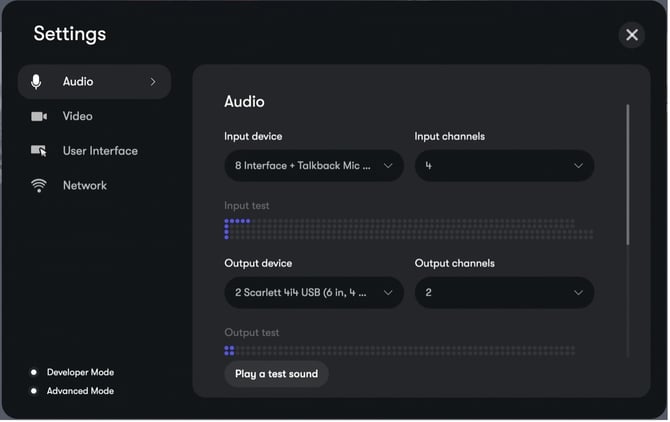
- Choose the Aggregate Device as the input and output. (If you followed these instructions to the letter, it will appear as ‘Interface + Talkback Mic’. No worries if you’re moving in your own way, of course.)
- Make sure to increase your input count to allow for your extra inputs into Bonza.
It should look like this:
Step 7: Adjusting Levels
In Bonza, open the Settings window via the cog at the top of the screen, or from the Liveroom bar. Make sure you’re on the Audio Settings tab:
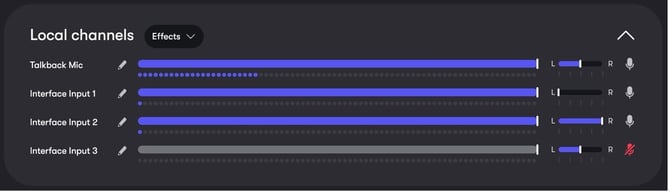
Feel free to name, pan, mute and adjust any of your local inputs. Your mix here is transmitted a stereo left-right mix to other participants (this is what they hear, but also the signal that feeds your local reverb).
As there is no need to self-monitor your talkback, we recommend direct monitoring from your interface, just like normal.